

Download @Max SyncUp – backup, sync, file synchronization, automated backup, cloud storage, FTP, restore points, bidirectional sync, data protection, file sharing
Overview
@Max SyncUp is a desktop-focused backup and synchronization tool designed to automate the protection of critical files across devices. Targeted at both individual users and small businesses, the application streamlines the process of safeguarding digital assets through scheduled backups, version control, and seamless file sharing. It addresses common pain points such as manual backup fatigue, accidental file deletion, and inconsistent file versions across team members. By offering automated workflows, @Max SyncUp reduces the risk of data loss and enhances data accessibility for users who rely on consistent file integrity.
The app’s primary function revolves around creating reliable backup copies of selected files and folders, with the ability to store them locally, on network drives, or via FTP servers. This flexibility supports a variety of real-world use cases, from personal document preservation to collaborative project management in small teams. The inclusion of restore points enables users to roll back to previous versions of files, which is particularly valuable in scenarios involving accidental overwrites or corruption.
While the developer, MaxSyncUp, is listed, no additional background or company history is publicly available. The application is positioned within the utilities category, emphasizing its role as a productivity-enhancing tool in the digital workspace. Despite not being a mobile app, it is included here as a relevant desktop utility for users managing files across multiple devices. Its integration with cloud services like Google Drive—though limited by free-tier constraints—adds to its appeal for users seeking hybrid storage solutions.
Key Features & Functionality
- Automated Backup – The app runs scheduled backups without user intervention, ensuring consistent protection of important files. Users can set frequency (daily, weekly, etc.) and trigger backups based on specific events like file changes or system startup.
- Robust Customization Options – Users can select specific files and folders for backup, define backup paths, and apply filters to exclude temporary or system files. This level of control allows for efficient use of storage and bandwidth.
- Restore Points – Similar to system restore points in Windows, @Max SyncUp creates versioned snapshots of backed-up files. This feature enables users to recover earlier versions in case of accidental deletion, malware attacks, or file corruption.
- Bidirectional Synchronization – Files and folders can be synchronized across multiple devices or remote machines in both directions. This is ideal for teams working on shared projects who need real-time updates across locations.
- FTP Server Transfer – The app supports direct file transfers to FTP servers, allowing businesses to centralize shared files in a secure, accessible location. This is especially useful for remote teams or agencies managing client assets.
For example, a freelance designer can use automated backups to protect client projects, while a small accounting firm might leverage bidirectional sync to ensure all team members have access to the latest financial documents. The FTP integration simplifies sharing large files with external partners without relying on third-party cloud services.
Interface, UX & Performance
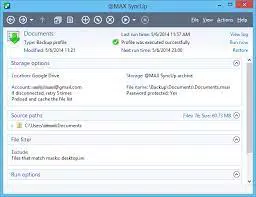
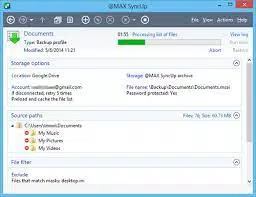
@Max SyncUp features a clean, intuitive user interface that prioritizes accessibility for non-technical users. The main dashboard displays backup status, recent activities, and scheduled tasks in a well-organized layout. Navigation is straightforward, with clearly labeled menus and a sidebar for quick access to settings, logs, and restore points.
Visual design emphasizes functionality over flair, using a minimalist aesthetic with consistent color coding for backup status (e.g., green for completed, red for failed). The application is responsive and maintains stability during long-running backup processes. Although the developer did not list formal performance metrics, the lightweight file size of 10.2 MB suggests efficient resource usage.
Performance across different device categories is not formally documented. However, given its Windows platform focus and modest size, it is likely to run smoothly on modern desktops and laptops with standard configurations. The app does not appear to consume excessive CPU or memory during idle or active operations, contributing to a stable user experience.
Platform Compatibility & Technical Requirements
@Max SyncUp is designed exclusively for the Windows operating system. It requires Windows 10 or later, though specific minimum OS requirements were not listed by the developer. The application has a file size of 10.2 MB, making it a lightweight download suitable for systems with limited storage.
The app is available in version 2.1.4, released on February 10, 2024. While compatibility with older Windows versions is not confirmed, the lack of explicit support suggests it may not function properly on systems prior to Windows 10. Users should verify system compatibility before installation.
Pros and Cons
- Automated backup reduces manual effort and human error
- Supports bidirectional sync for team collaboration
- Restore points offer version control and data recovery
- FTP server integration enhances file sharing for businesses
- Lightweight design with low system resource usage
- One-time purchase price of $45 may be high for casual users
- Cloud storage integration limited to Google Drive with free-tier constraints
- No mobile app version available for on-the-go access
- Limited speed and scalability compared to cloud-native alternatives
- Customization options may overwhelm beginners
FAQ
Is @Max SyncUp compatible with all Windows versions?
The developer did not specify minimum OS requirements. It is recommended to ensure your system runs Windows 10 or later for optimal performance.
Can I use @Max SyncUp on multiple devices?
Yes, the application can be installed on multiple Windows machines. However, synchronization across devices requires proper configuration of shared storage or network paths.
Is the app secure for storing sensitive data?
@Max SyncUp does not explicitly mention encryption features. Users should ensure that storage locations (e.g., FTP servers, cloud drives) are secured with appropriate access controls.
How often can I schedule backups?
Users can set backup schedules based on their needs, including daily, weekly, or event-triggered backups. The exact frequency options are customizable within the app settings.
Does @Max SyncUp support cloud storage other than Google Drive?
While Google Drive is supported, the developer did not list other cloud providers. Users should verify supported services through the app’s documentation or settings.
Final Thoughts
@Max SyncUp delivers a solid, no-frills solution for users seeking reliable file backup and synchronization on Windows. Its automated workflows, restore points, and bidirectional sync make it a valuable tool for individuals and small teams managing important data. While the $45 price tag may deter budget-conscious users, the app’s stability, customization, and FTP integration offer tangible benefits for those prioritizing control and security over cloud dependency.
For users who value data integrity and want a lightweight, customizable backup tool without recurring subscriptions, @Max SyncUp stands out in the utilities space. Its focus on automation and versioning ensures peace of mind in an era of increasing digital risk.
Download @Max SyncUp now


